> ## Documentation Index
> Fetch the complete documentation index at: https://docs.qall.io/llms.txt
> Use this file to discover all available pages before exploring further.
# Calls
> Every conversation, with its transcript, recording and result.
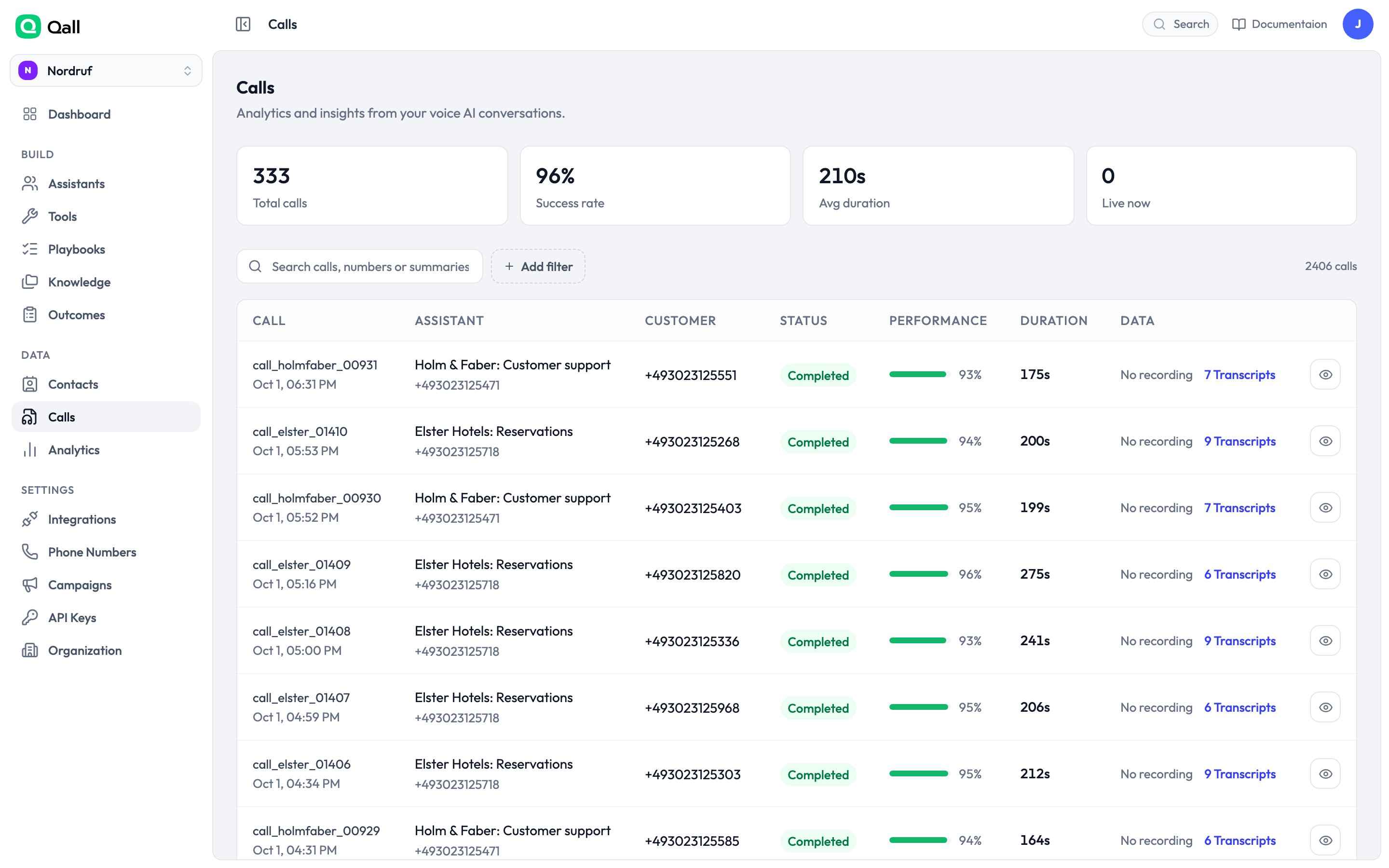
Every call your assistants handle lands here — inbound, outbound and from your
website.
 ## What a call holds
A call opens on four tabs:
| Tab | |
| - | - |
| **Overview** | The headline numbers and how the call went |
| **Details** | The summary and the recorded [outcomes](/outcomes) |
| **Conversation** | The transcript, turn by turn, with the recording |
| **Logs** | [Webhook](/api-reference/webhooks) deliveries for this call |
Across the top: status, duration, total cost, **average response time**, and
**accuracy**.
Average response is how long the assistant took to start replying, averaged over
the call — the number to watch if callers say it feels slow. Accuracy is how
confident the transcription was; a low figure usually means a bad line or an
accent the model is struggling with, and is often fixed with
[keyterms](/assistants).
Tool calls appear inline in the transcript, with what the assistant sent and what
came back — which is usually the fastest way to work out why a call went the way
it did.
## What a call holds
A call opens on four tabs:
| Tab | |
| - | - |
| **Overview** | The headline numbers and how the call went |
| **Details** | The summary and the recorded [outcomes](/outcomes) |
| **Conversation** | The transcript, turn by turn, with the recording |
| **Logs** | [Webhook](/api-reference/webhooks) deliveries for this call |
Across the top: status, duration, total cost, **average response time**, and
**accuracy**.
Average response is how long the assistant took to start replying, averaged over
the call — the number to watch if callers say it feels slow. Accuracy is how
confident the transcription was; a low figure usually means a bad line or an
accent the model is struggling with, and is often fixed with
[keyterms](/assistants).
Tool calls appear inline in the transcript, with what the assistant sent and what
came back — which is usually the fastest way to work out why a call went the way
it did.
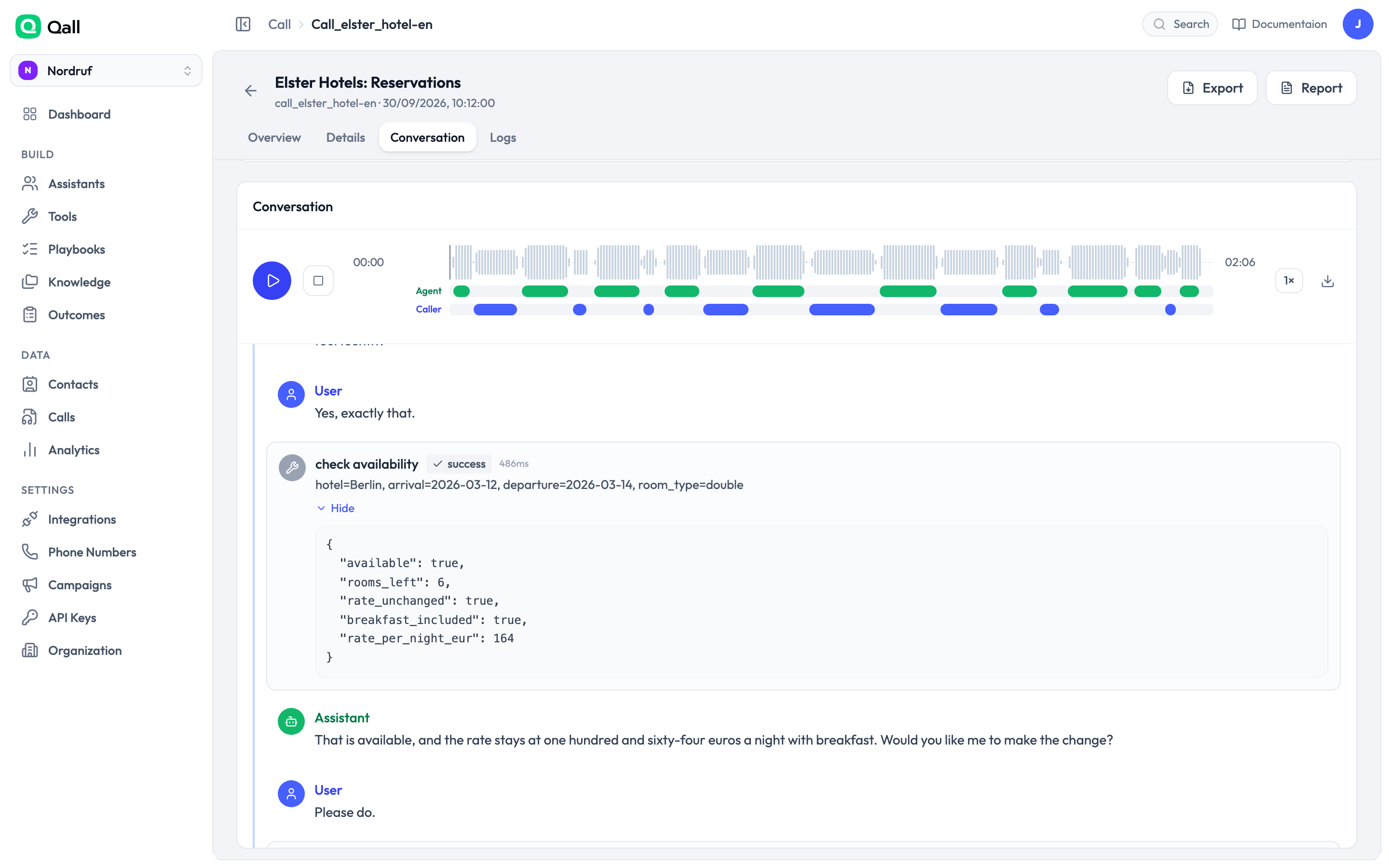 Each assistant turn also carries its own timing, so you can see whether a slow
moment was the transcription, the model or the voice.
You'll also see what the call cost, broken down by the language model, the voice
and the transcription. Calls that ran on [your own provider
keys](/integrations) don't carry model costs.
## Finding calls
Filter by assistant, by direction, by how it ended, by whether it was recorded, by
date, or by the outcomes that were recorded. Search matches the phone numbers, the
call id and the summary — so searching *refund* finds the call about a refund.
Everything you can filter, you can export as CSV or JSON.
## How a call ended
| | |
| - | - |
| **Caller hung up** | They ended it. |
| **Assistant ended** | The assistant finished the call. |
| **Busy** | The line rejected it. |
| **No answer** | Nobody picked up. |
| **Failed** | The call couldn't be completed. |
## When things appear
The transcript and summary are there as the call ends. The recording takes a
little longer, because the audio file is finalised afterwards.
If you're acting on calls from your own code, that distinction matters — wait for
[`recording.ready`](/api-reference/webhooks/recording-ready) rather than reading a
recording URL from `call.completed`.
## Checking webhook deliveries
The **Logs** tab shows what Qall sent to your
[webhook endpoints](/api-reference/webhooks) for this call, with the response and
how long it took. When something hasn't arrived in your system, look here first —
it tells you whether the problem is us sending or you receiving.
## Recordings
Play a recording from the call page, or download it. Recordings are only reachable
by people signed in to your organisation — a recording link isn't public.
This documentation is built and hosted on [Mintlify](https://mintlify.com), a developer documentation platform.
Each assistant turn also carries its own timing, so you can see whether a slow
moment was the transcription, the model or the voice.
You'll also see what the call cost, broken down by the language model, the voice
and the transcription. Calls that ran on [your own provider
keys](/integrations) don't carry model costs.
## Finding calls
Filter by assistant, by direction, by how it ended, by whether it was recorded, by
date, or by the outcomes that were recorded. Search matches the phone numbers, the
call id and the summary — so searching *refund* finds the call about a refund.
Everything you can filter, you can export as CSV or JSON.
## How a call ended
| | |
| - | - |
| **Caller hung up** | They ended it. |
| **Assistant ended** | The assistant finished the call. |
| **Busy** | The line rejected it. |
| **No answer** | Nobody picked up. |
| **Failed** | The call couldn't be completed. |
## When things appear
The transcript and summary are there as the call ends. The recording takes a
little longer, because the audio file is finalised afterwards.
If you're acting on calls from your own code, that distinction matters — wait for
[`recording.ready`](/api-reference/webhooks/recording-ready) rather than reading a
recording URL from `call.completed`.
## Checking webhook deliveries
The **Logs** tab shows what Qall sent to your
[webhook endpoints](/api-reference/webhooks) for this call, with the response and
how long it took. When something hasn't arrived in your system, look here first —
it tells you whether the problem is us sending or you receiving.
## Recordings
Play a recording from the call page, or download it. Recordings are only reachable
by people signed in to your organisation — a recording link isn't public.
This documentation is built and hosted on [Mintlify](https://mintlify.com), a developer documentation platform.